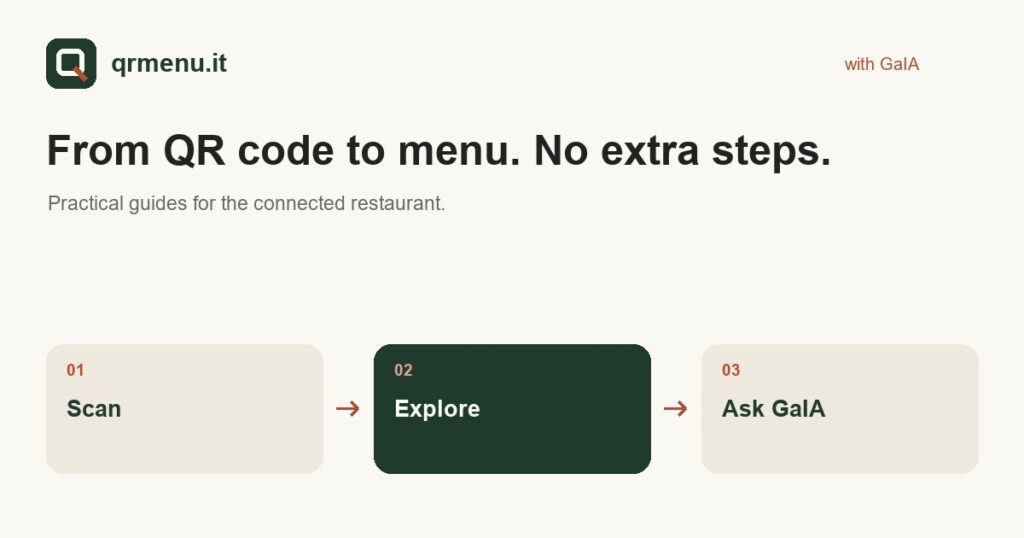
A QR code menu connects a physical display to a page that can be opened on a phone. The code contains an address: the experience mainly depends on what customers find after opening it. Before printing dozens of displays, check the destination, readability and how the menu is updated.
The code is the entrance, not the menu
The QR code does not necessarily contain the list of dishes. In the simplest journey, it points to a public URL showing the restaurant’s menu, with separate access to the wine list. Customers scan the code with their phones and open the suggested destination.
A stable destination lets you update page content without changing the printed QR code each time. This works as long as the address encoded in the code stays the same: before changing the domain or path, plan how to keep existing displays working.
Choose a precise destination
For the menu, use a direct link rather than making customers search the homepage. For the wine list, you can offer a second, clearly labelled QR code. Do not give the same link two different names if they promise different content.
Always say what will open on the display. “Scan for the menu” is more useful than an isolated code. Adding a readable address also offers an alternative for people who prefer typing the link or cannot use the camera.
Test the QR code in your restaurant’s conditions
- Try several phones and at least one real print of the final display.
- Maintain contrast, proportions and a clear margin around the code.
- Check scanning from the table, under normal lighting and without excessive reflections.
- Check that the link opens the right content and that the page is readable without installing an app.
- Repeat the check after changes to the domain, menu or website structure.
From browsing to conversation
Customers reading the menu may have questions about a dish, price or availability. In the QRMenu service, GaIA uses configured content to answer through enabled channels. The QR code remains a simple entry point; the assistant adds another way to get to know the restaurant.
At the Il Giardino demo restaurant, you can try both experiences: open the menu and wine list, then ask GaIA for information. Demo content is fictional and is intended to help assess the journey. It is not a promise of availability at a real restaurant.
What the QRMenu proposal includes
The QR menu is offered within the GaIA service, alongside the assistant and the functions agreed for the restaurant. It is not a free code generator or a menu sold separately. When comparing solutions, assess the overall work: content, website, contact channels and bookings.
The next step is not printing a QR code immediately: it is testing the journey with one of your menus and clarifying how to update it. A correct link is only useful if it leads to well-maintained information.
Learn more and try it for your restaurant
Explore the QR menu with GaIA or read the guide to choosing a digital menu.
First see the menu. Then ask GaIA a question.
Il Giardino is a demo restaurant: explore the menu and test the journey from question to booking. To apply it to your own restaurant, tell us how you work.
Let’s talk about your restaurant. The QR menu is part of the GaIA service and is not sold separately.